
Access Control
Access Control, in the sidebar, gathers the four screens that define who gets into MarIA and what each person reaches.
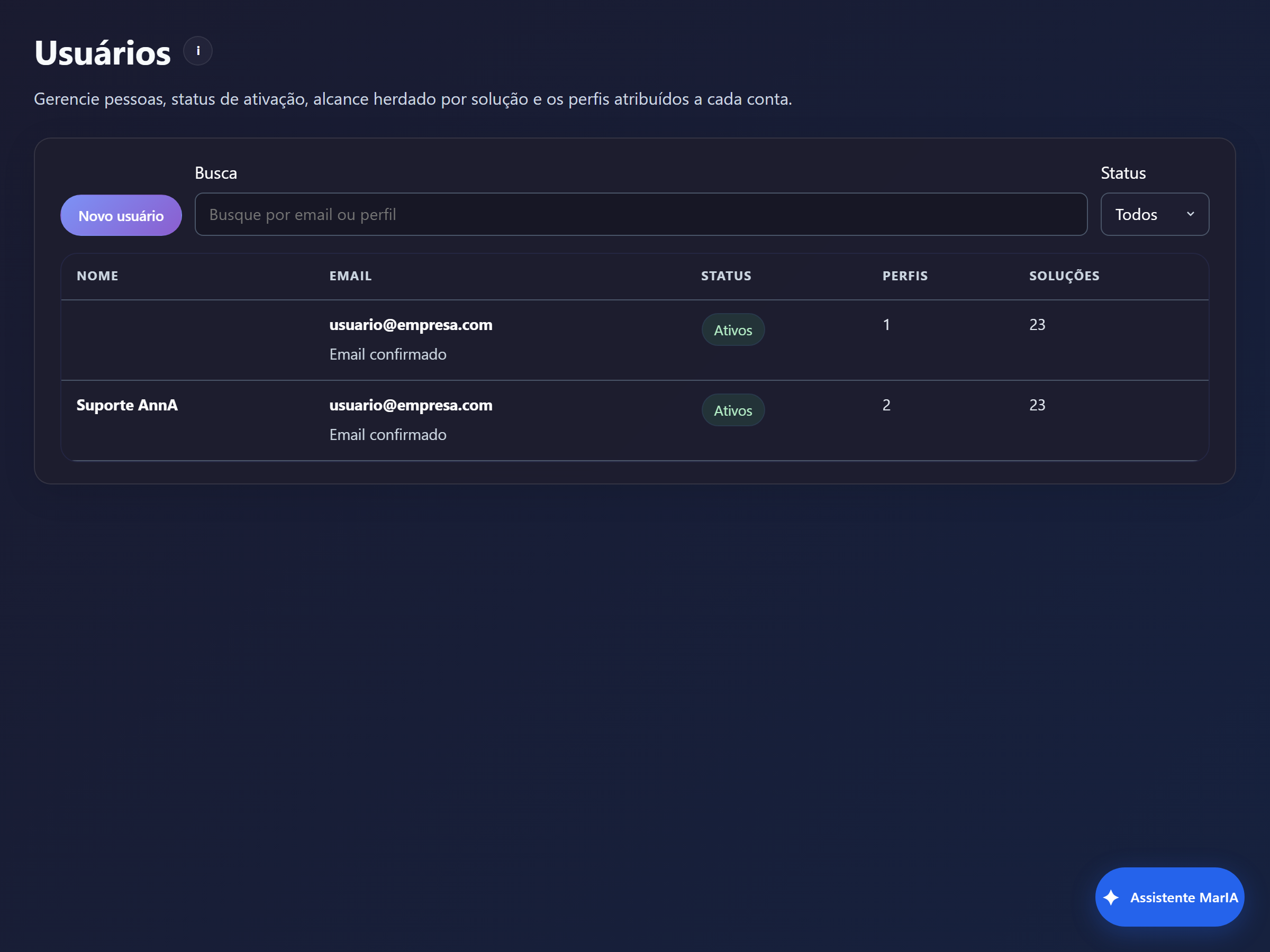
The list shows Name, Email, Status, how many Roles the person has and how many Solutions they reach. Filter by Search and by Status (All, Active, Inactive).
Inviting someone
Section titled “Inviting someone”Click New user and enter Name, Email and the Invite email language. The person receives an invitation and sets their own password — you never type someone else’s password.
On the user detail page you follow the Invite status and have three actions:
| Action | When to use it |
|---|---|
| Resend invite | The email did not arrive |
| View invite | You need to hand the link over through another channel |
| Disable user | The person left; history is preserved |
Assigning roles
Section titled “Assigning roles”Still on the user detail page, Add role and Assign role connect the account to roles. It is the role assignment that turns permission into effective access.
Access Roles
Section titled “Access Roles”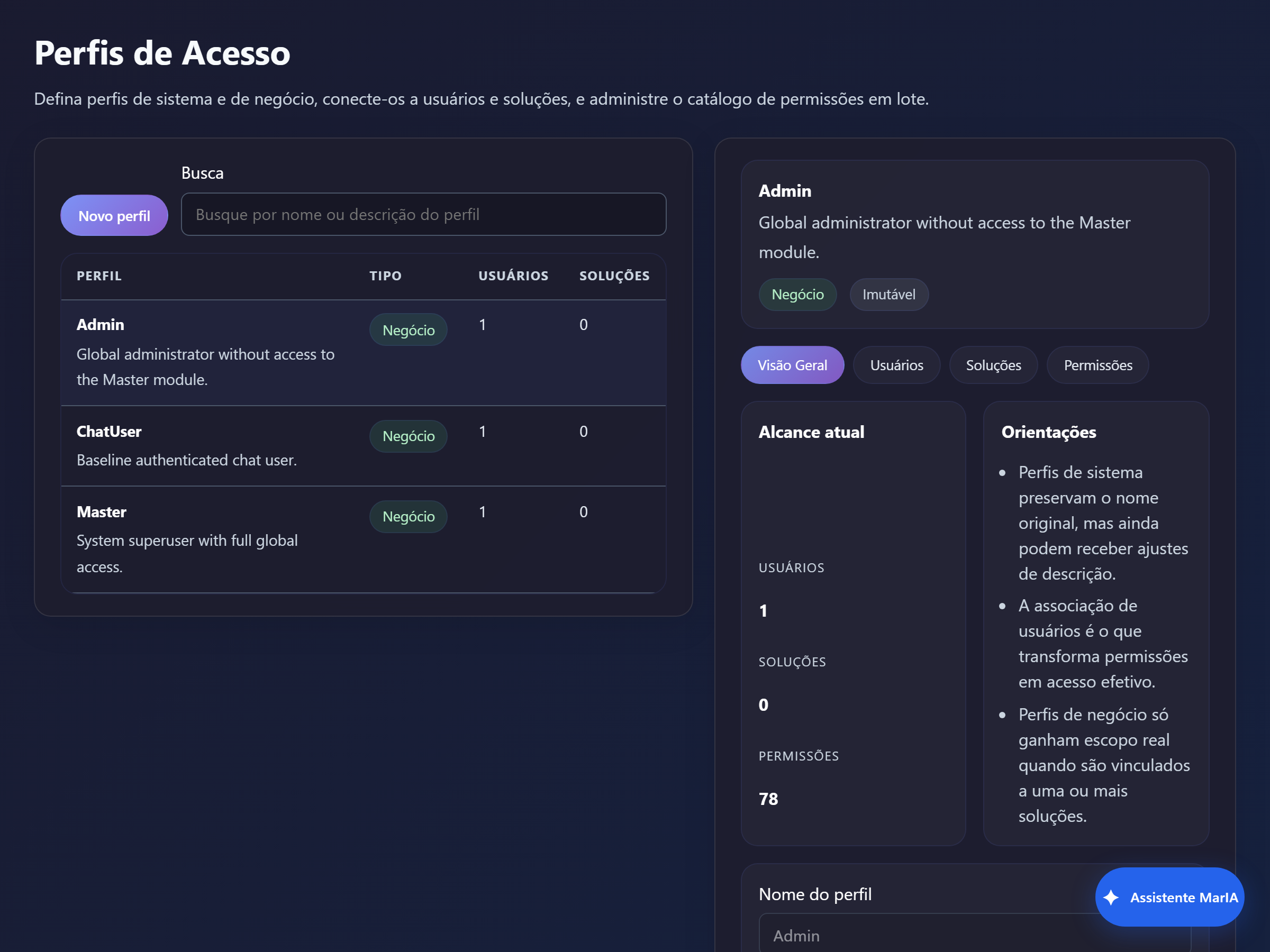
A role is a set of permissions. The list shows the type, how many users and how many solutions each role reaches; the detail page brings the Overview, Users, Solutions and Permissions tabs.
Three pieces of guidance appear on the screen itself and sum up the model nicely:
- system roles keep their original name, but still accept a description tweak;
- assigning users is what turns permissions into effective access;
- business roles only gain real scope once they are linked to one or more solutions.
In other words: creating the role and granting permissions is not enough. You must link the role to the solutions — which can also be done in Solution access — and assign the role to people.
Authentication
Section titled “Authentication”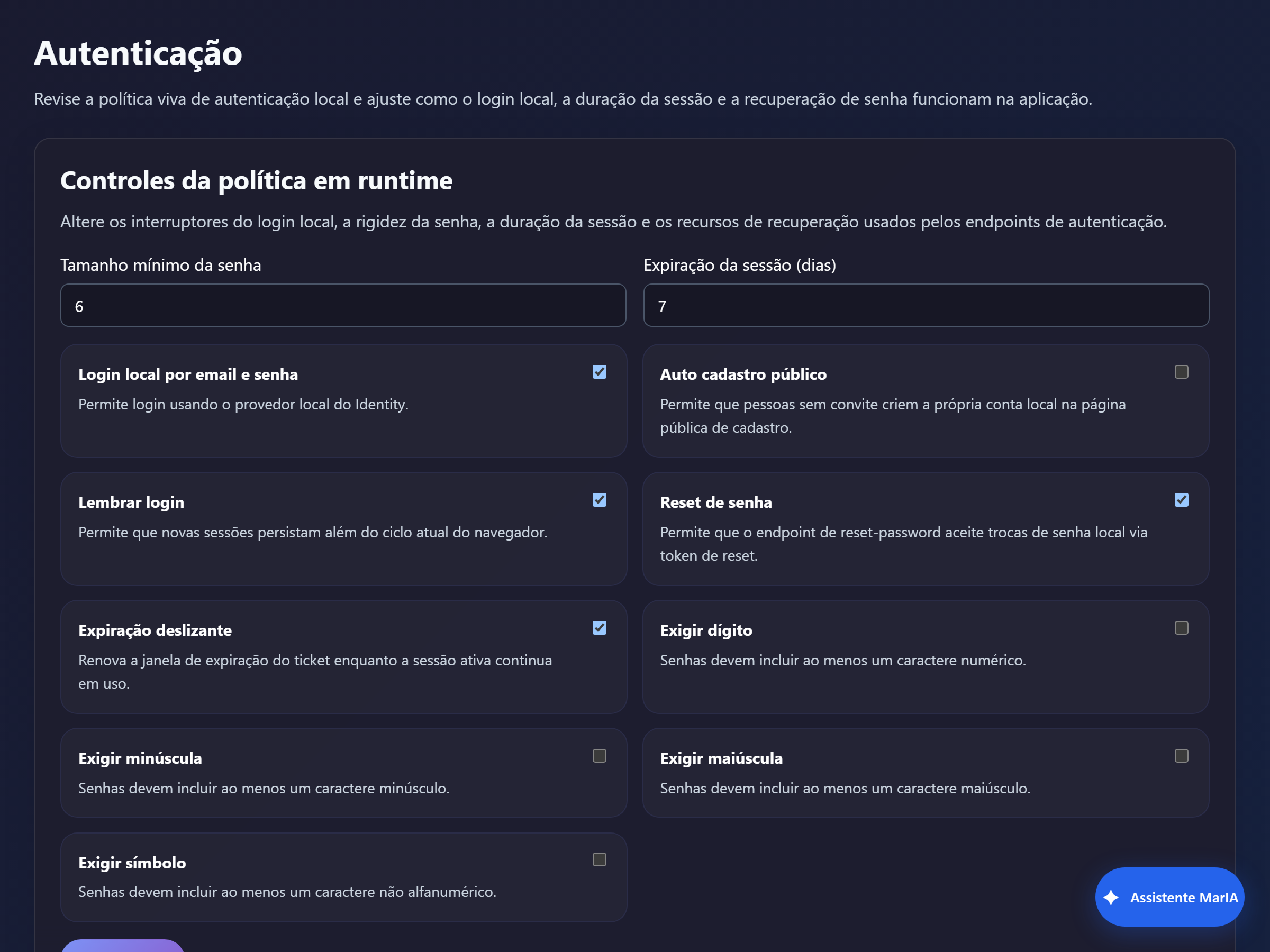
This is where the local login rules live, all of them effective immediately:
| Group | Controls |
|---|---|
| Password | Minimum length, Require digit, Require lowercase, Require uppercase, Require symbol |
| Session | Session expiration (days), Remember me, Sliding expiration |
| Entry | Local email and password login, Public self-registration, Password reset |
Audit log
Section titled “Audit log”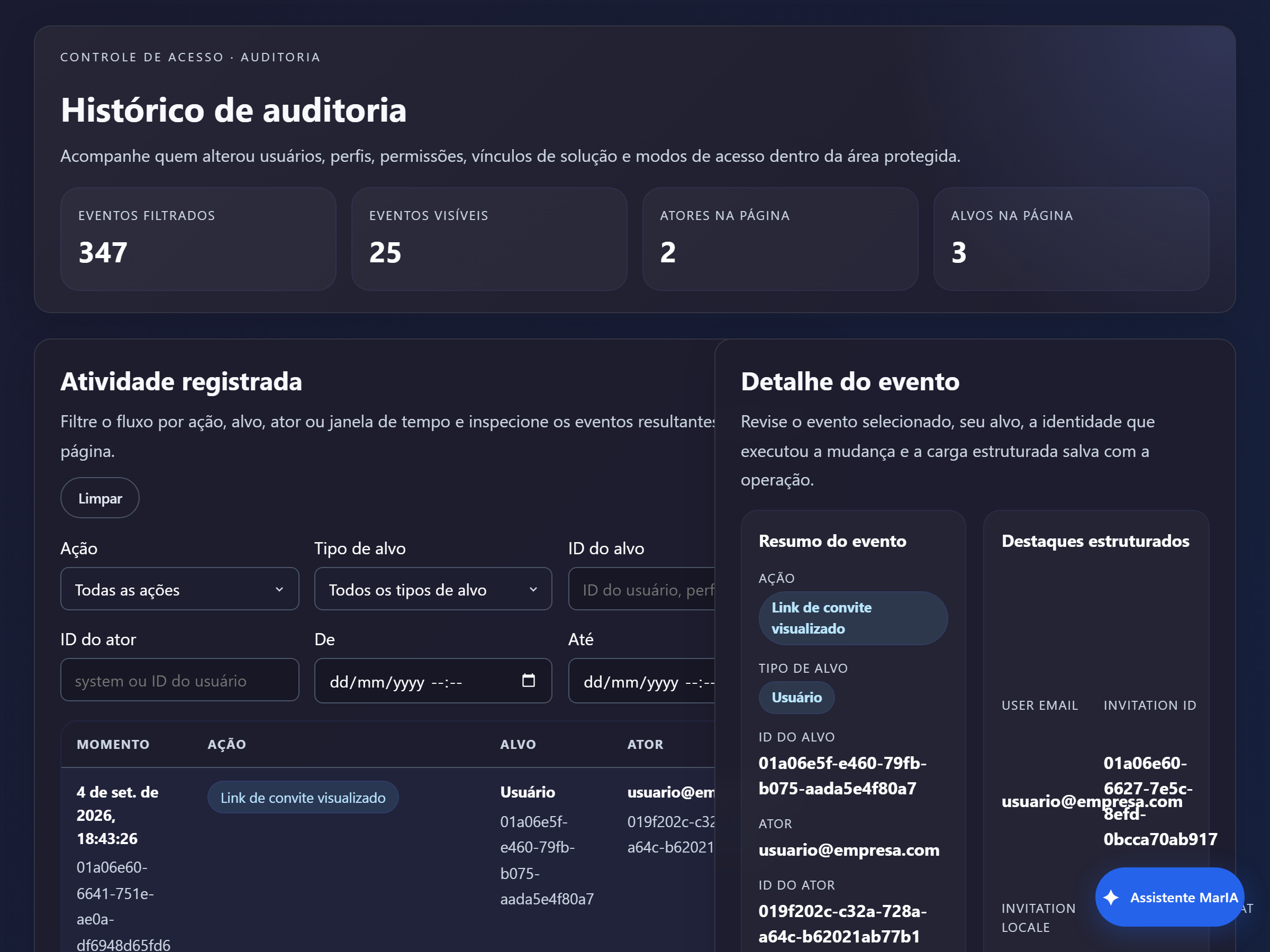
Records who changed users, roles, permissions, solution links and access modes. Filter by Action, Target type, Target ID, Actor ID and time window.
It is the first screen to open when someone asks “why did this person lose access?”: the action, the moment and the author are all recorded.