
Solution folders
A folder groups related solutions. Every solution belongs to at least one folder, and the folder offers three things beyond tidiness: shared memory, a single API key and an integration endpoint that serves every member solution.
Open a folder through the settings icon next to it in the sidebar, or through Configure Folder in the solutions list.
General
Section titled “General”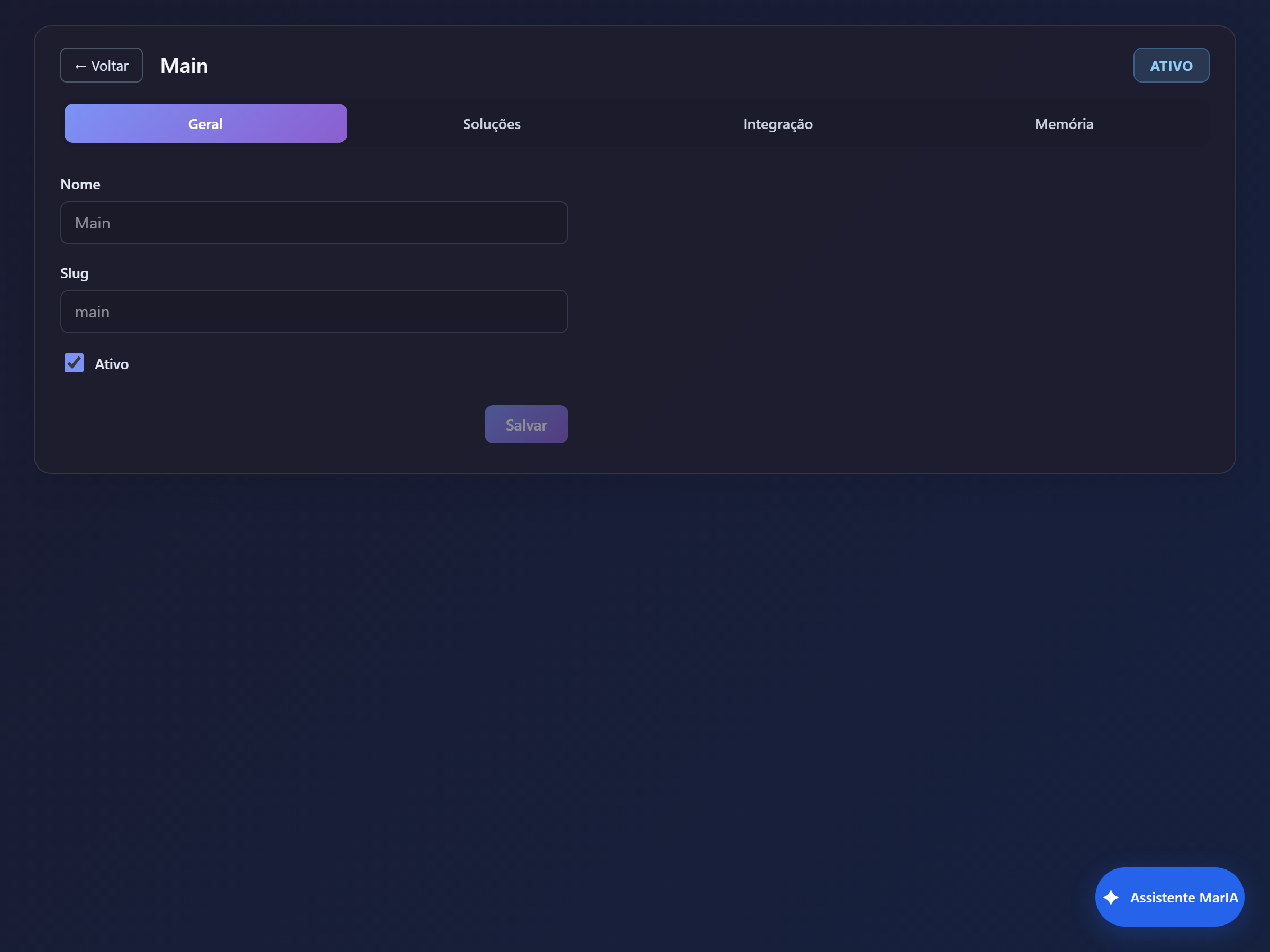
Name, slug and the Active state. An inactive folder disappears from the sidebar and stops serving calls on its endpoint.
Solutions
Section titled “Solutions”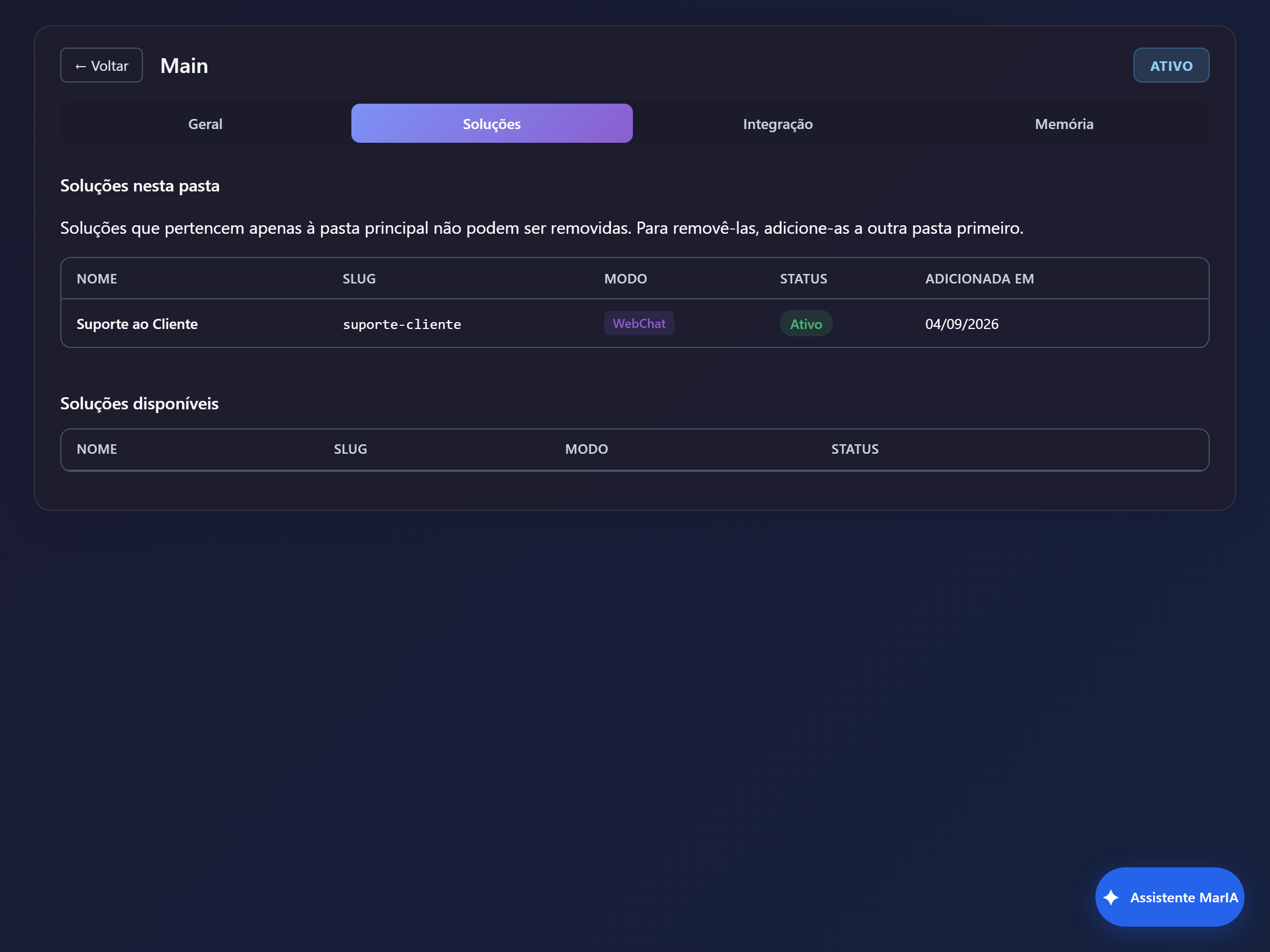
The tab has two lists:
- Solutions in this folder — the member solutions, with name, slug, mode, status and the date they joined.
- Available solutions — all the others, with an Add button.
Integration
Section titled “Integration”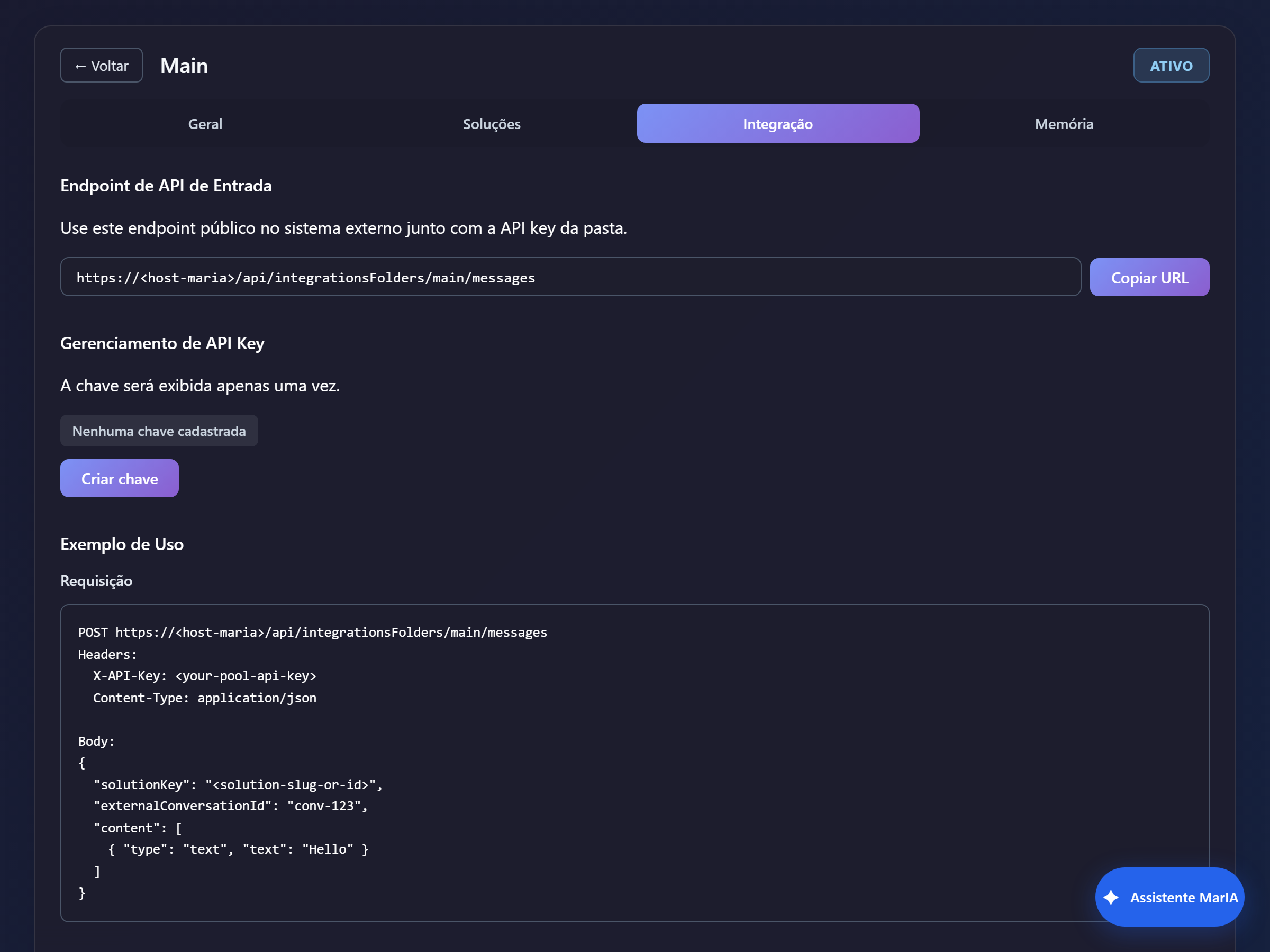
Here the folder gains a single entry point for external systems:
| Element | What it is |
|---|---|
| Inbound API Endpoint | The address the external system calls, with a Copy URL button |
| API Key management | Create key generates the folder key — it is shown only once |
| Usage example | A ready-made request example, with headers and body |
The request body carries a solutionKey field, and that is what decides which solution in the
folder handles the message. One address and one key, with routing per solution.
Memory
Section titled “Memory”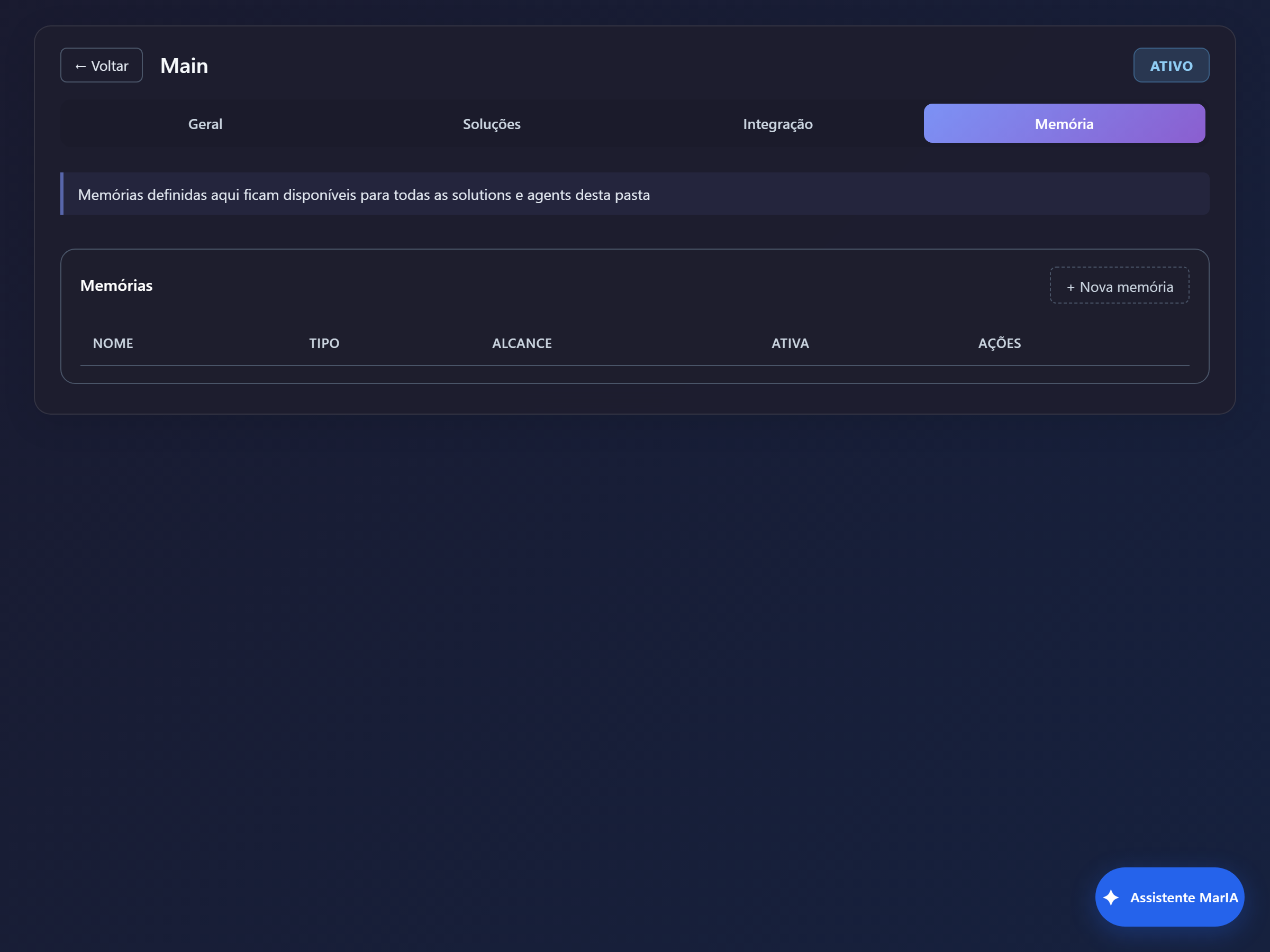
Memories created here are available to every solution and agent in the folder. It is the right place for knowledge shared across solutions — the company’s returns policy, for instance, used by both support and after-sales.
In member solutions those memories show up marked as Inherited. See Memory for types, scopes and permissions.
When to create a new folder
Section titled “When to create a new folder”- When several solutions share knowledge and it makes sense to keep it in one place.
- When an external system needs to talk to several solutions without managing one key per solution.
- When the solutions list has grown enough to get in the way of navigation.