
MCP servers
An MCP server (Model Context Protocol) is an external system that offers ready-made tools for your agents. Instead of creating one External API per operation, you register the server once and it publishes its own catalogue of tools.
There are two steps: registering the server in the solution and releasing it in the agent.
1. Register in the solution
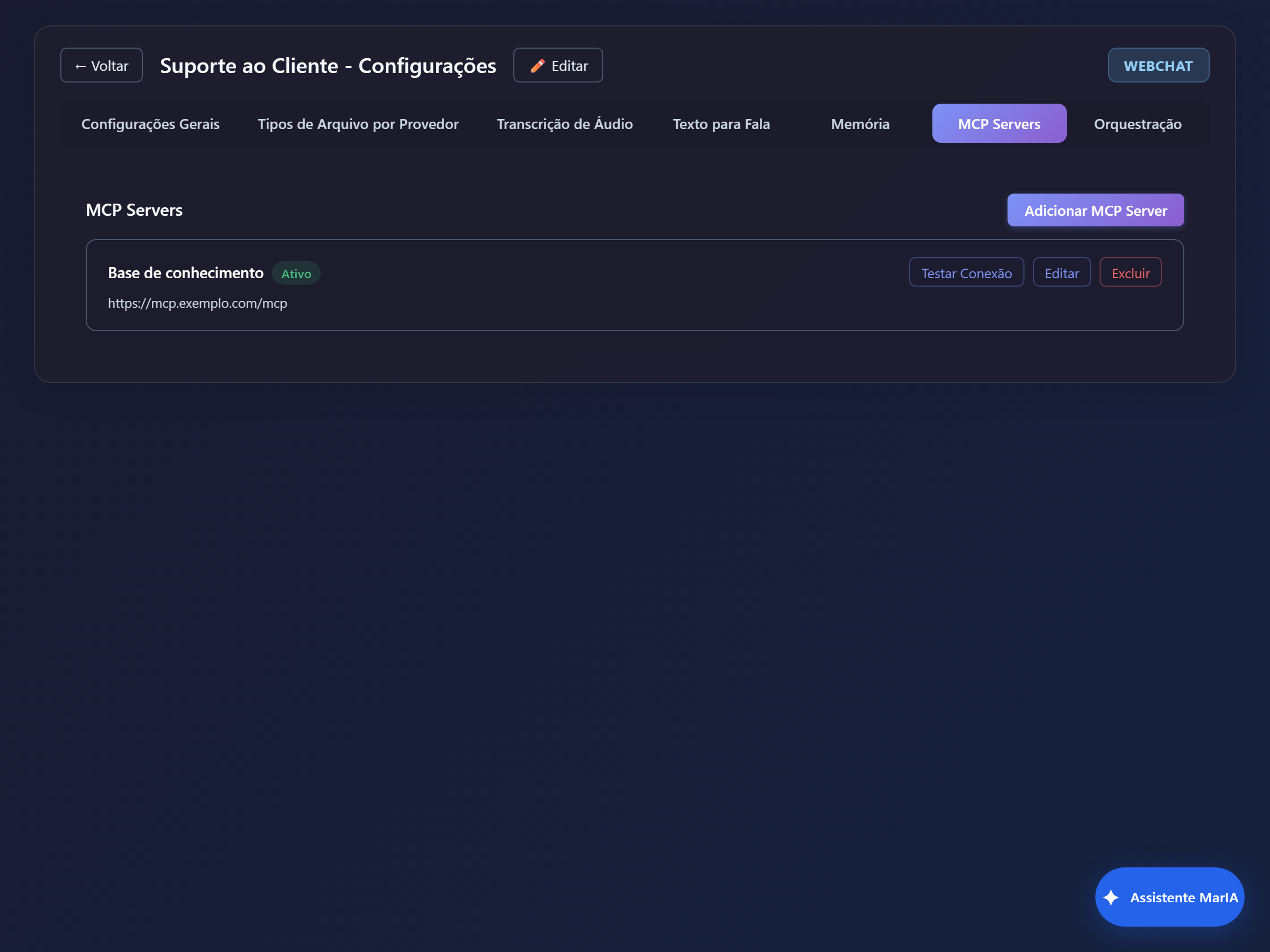
Section titled “1. Register in the solution”Go to Settings → MCP Servers and click Add MCP Server.
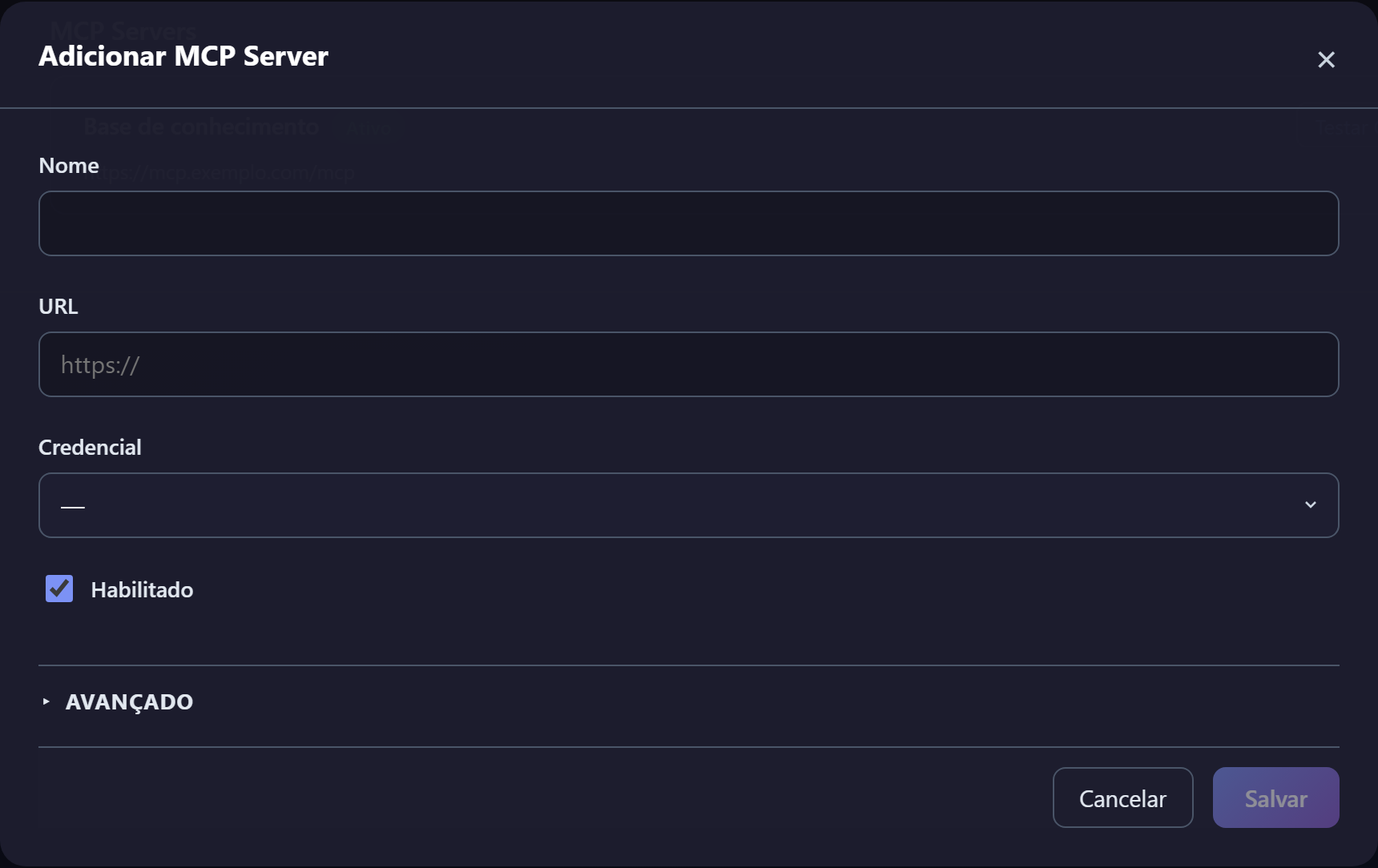
| Field | What to enter |
|---|---|
| Name | A label to identify the server across the screens |
| URL | The MCP server address |
| Credential | A credential delegated to this solution, when the server requires authentication |
| Enabled | Uncheck to turn the server off without deleting the entry |
| Advanced | Extra options, such as how returned content is handled and the result size limit |
Once saved, the server appears in the tab’s list.
2. Release in the agent
Section titled “2. Release in the agent”Registering is not enough: each agent picks which of that server’s tools it may use. Open the agent editor and go to the MCP tab.
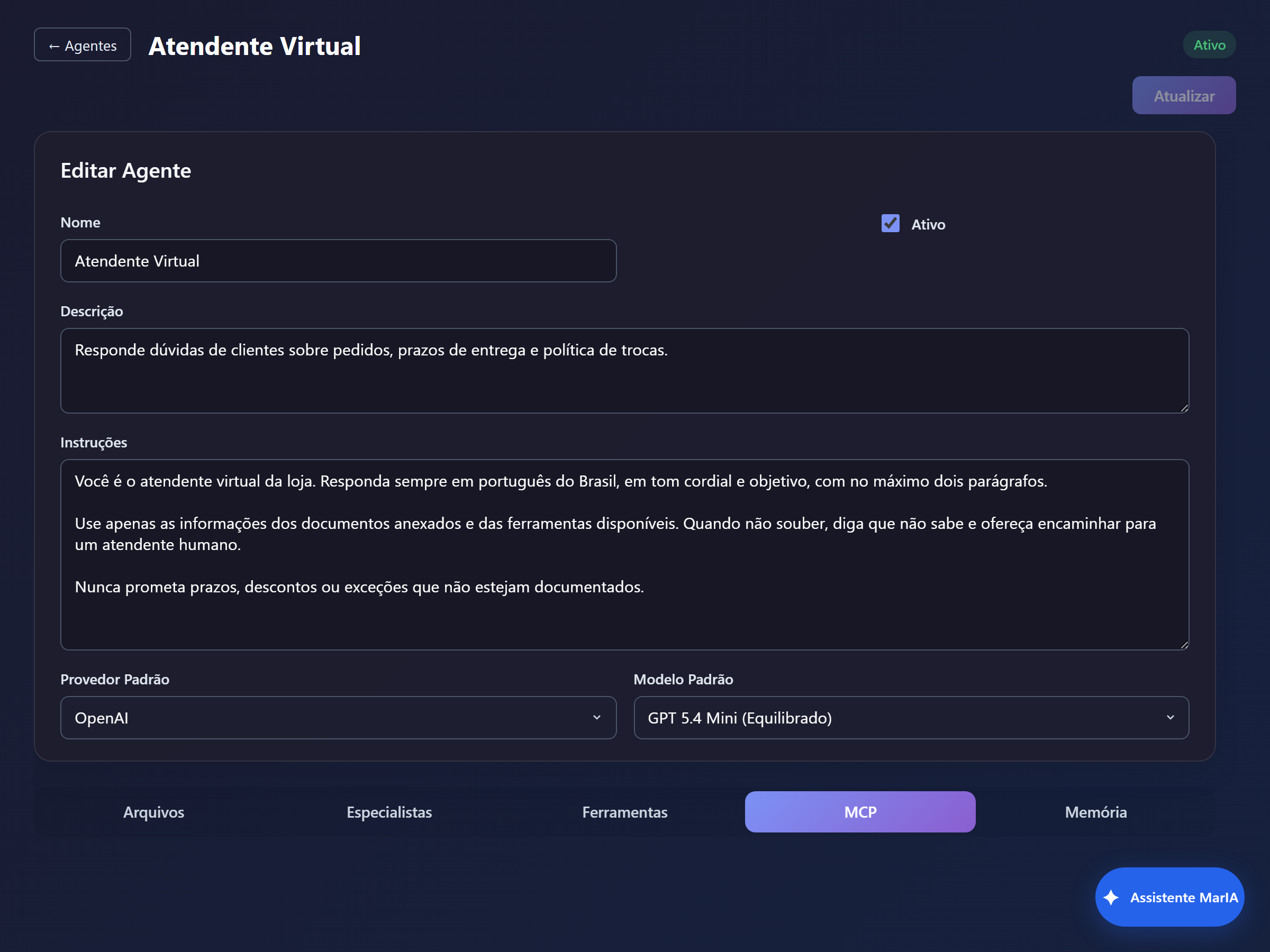
- Enable the server for this agent.
- Select the tools it may call — the selection can be partial.
Release only what the agent really needs. A released tool is a tool the agent can call, and too many options make the choice worse.
When something does not work
Section titled “When something does not work”| Symptom | Likely cause |
|---|---|
| The server lists no tools | Wrong URL, server down, or invalid credential |
| The agent does not use the tool | The server was not enabled on the agent, or the tool was not selected |
| A tool disappears after a server update | It was renamed on the other side; go back to the agent’s MCP tab and select the new name |
| The result arrives cut off | The result size limit, under Advanced |