
Signing in and getting around
Signing in
Section titled “Signing in”Open your company’s MarIA address (https://<host-maria>) and enter your email and password.
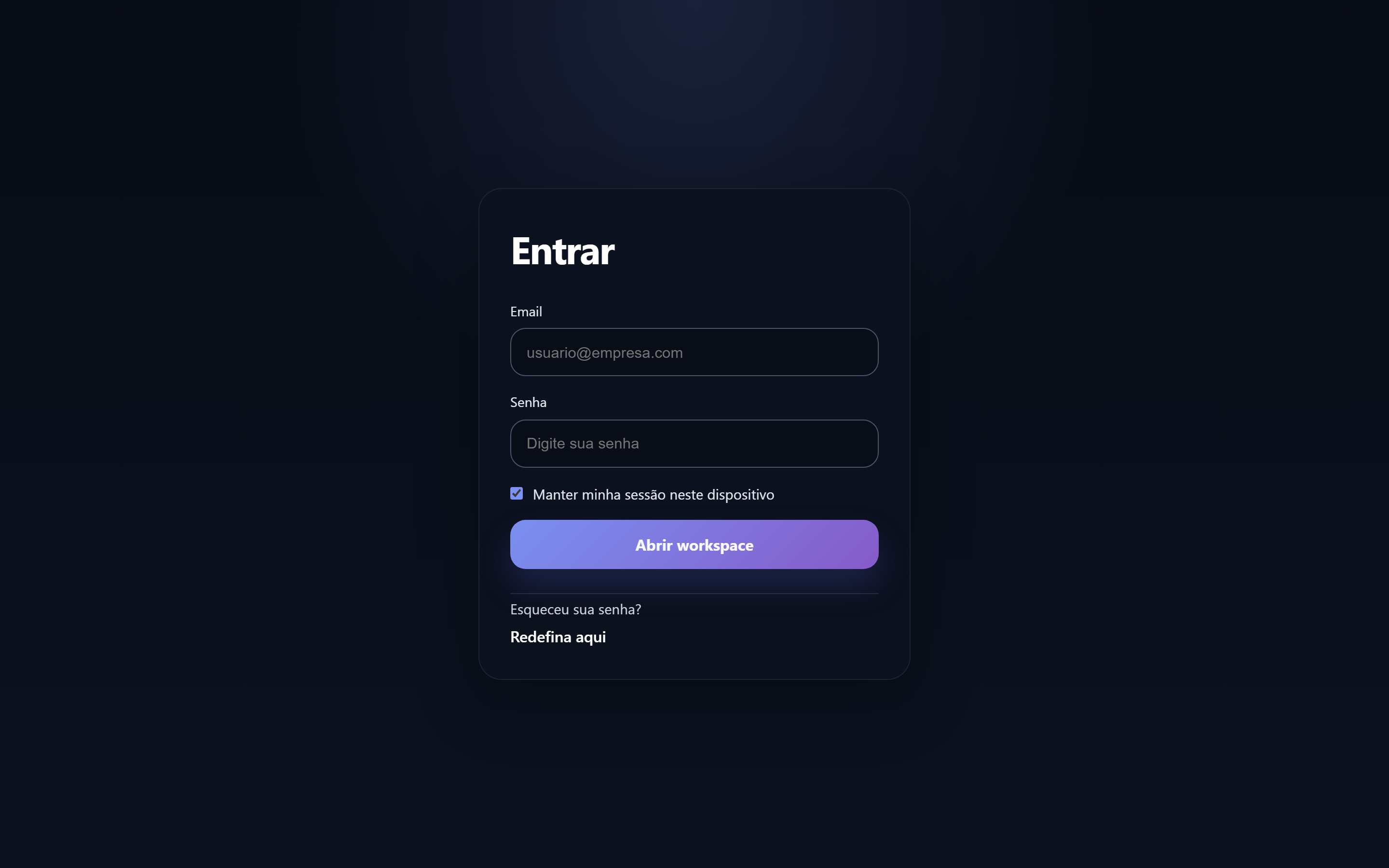
- Keep me signed in on this device keeps your session alive between visits. Leave it unchecked on shared computers.
- Forgot your password? sends a reset link to your email.
If your credentials are correct but access is refused, your user may be disabled or lack permission — talk to whoever administers MarIA at your company.
The sidebar
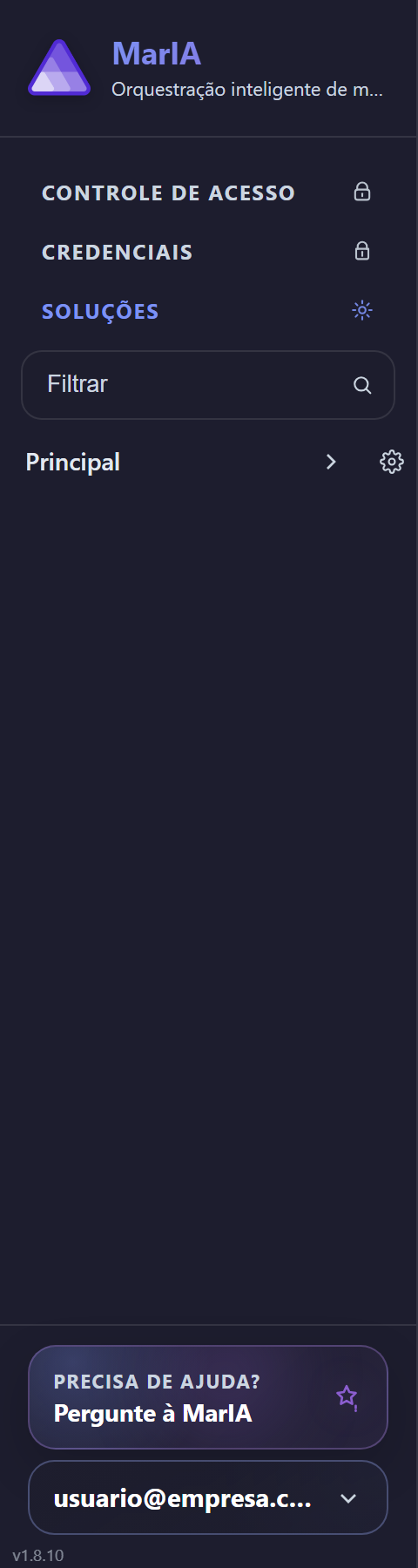
Section titled “The sidebar”Once you are in, the left sidebar is your starting point. It is always there and has three areas:
| Area | What you find |
|---|---|
| Access Control | Users, access roles, authentication and audit log |
| Credentials | The secure connections reused across solutions |
| Solutions | The list of folders and solutions, with a Filter field right below |
You only see what your role allows. If an item above does not appear for you, it is a matter of permission, not a system error.
When you click a solution, the sidebar expands to show that solution’s items — Agents, Settings, Access, Orchestration, Consumption and Chat.
The bottom of the sidebar
Section titled “The bottom of the sidebar”Three things live at the foot of the sidebar:
- Ask MarIA — opens the platform’s own help assistant. It knows the screens and answers questions about what you are looking at.
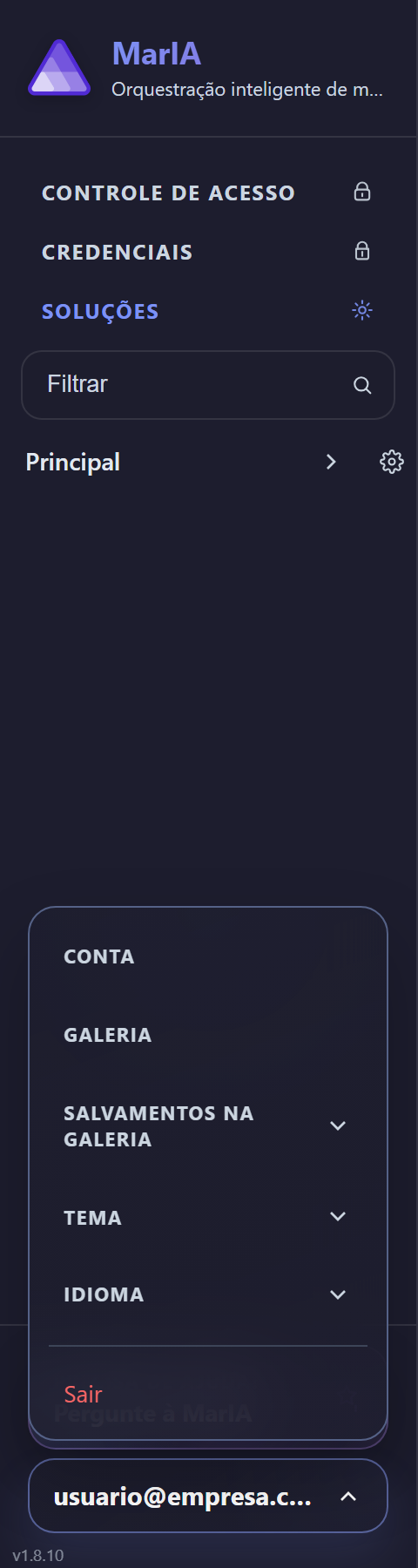
- Your email — opens the account menu, with Account, Gallery, Gallery saves, Theme, Language and Sign out.
- The installed version (for example,
v1.8.10). Worth quoting when you open a support ticket.
Account, language and theme
Section titled “Account, language and theme”Open the account menu to switch the interface language, toggle light and dark theme, or change your password.
The Account page shows the identity of the active session, the roles loaded and how many permissions you have. It is the right place to check, before opening a ticket, whether the screen you are missing is really a permission matter.