
Solutions and folders
A solution is the workspace for one business subject: it holds the agents, the settings, the access rules and the chat. Every solution belongs to at least one folder, which groups related solutions together.
The solutions list
Section titled “The solutions list”Click Solutions in the sidebar to open the full list.
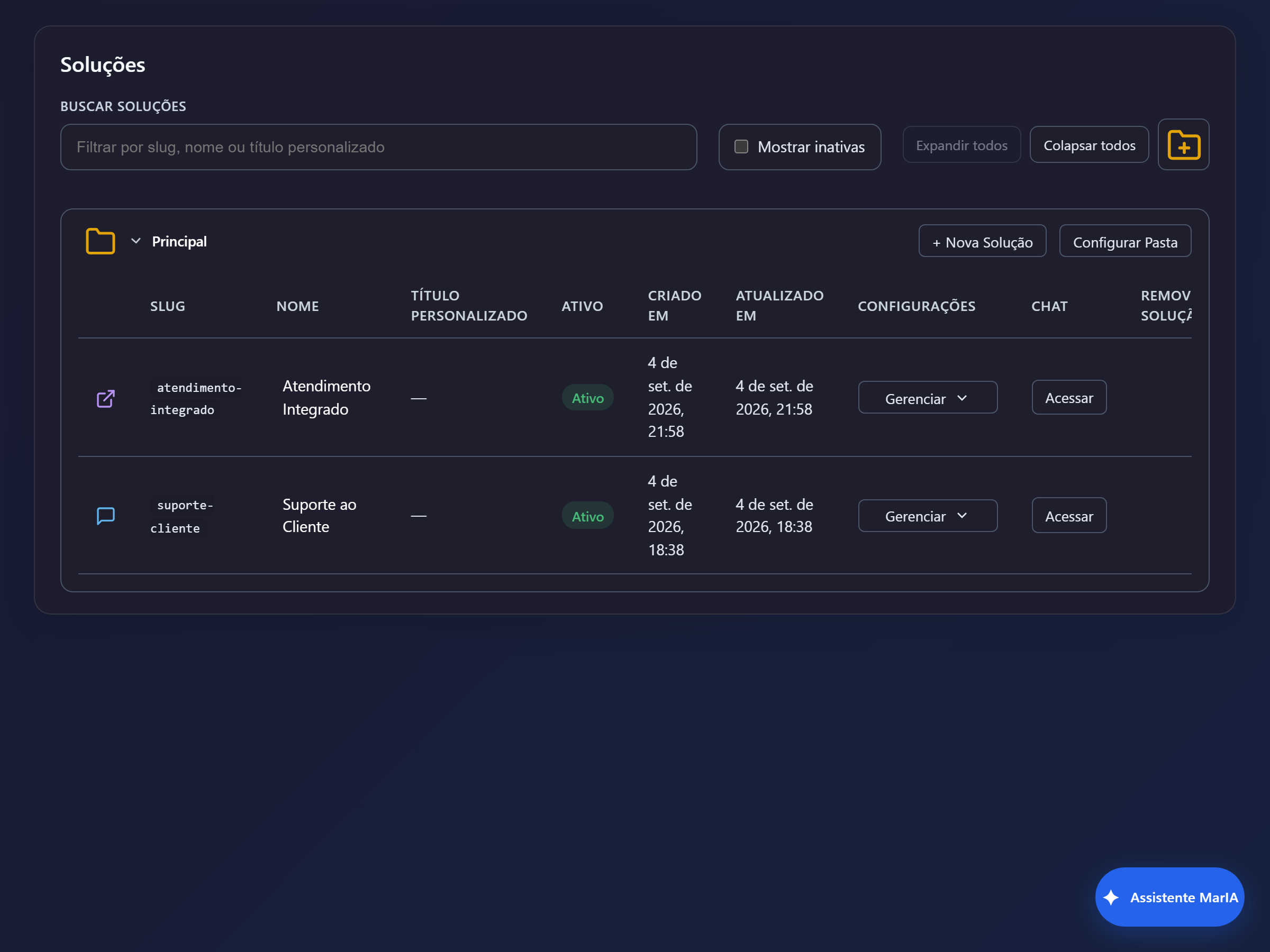
Solutions appear grouped by folder. Each row shows Slug, Name, Custom Title, Active, Created At and Updated At, plus the Manage, Open (chat) and Remove Solution actions — the last one takes the solution out of that folder without deleting it.
- The Search solutions filter matches slug, name or custom title.
- Show inactive reveals deactivated solutions, hidden by default.
- Expand all and Collapse all open and close every folder at once.
- Solutions marked System are managed by MarIA itself and cannot be changed.
Folders in the sidebar
Section titled “Folders in the sidebar”In the sidebar, folders appear as items you can expand to reveal the solutions they contain. It is the fastest way to move between solutions day to day.
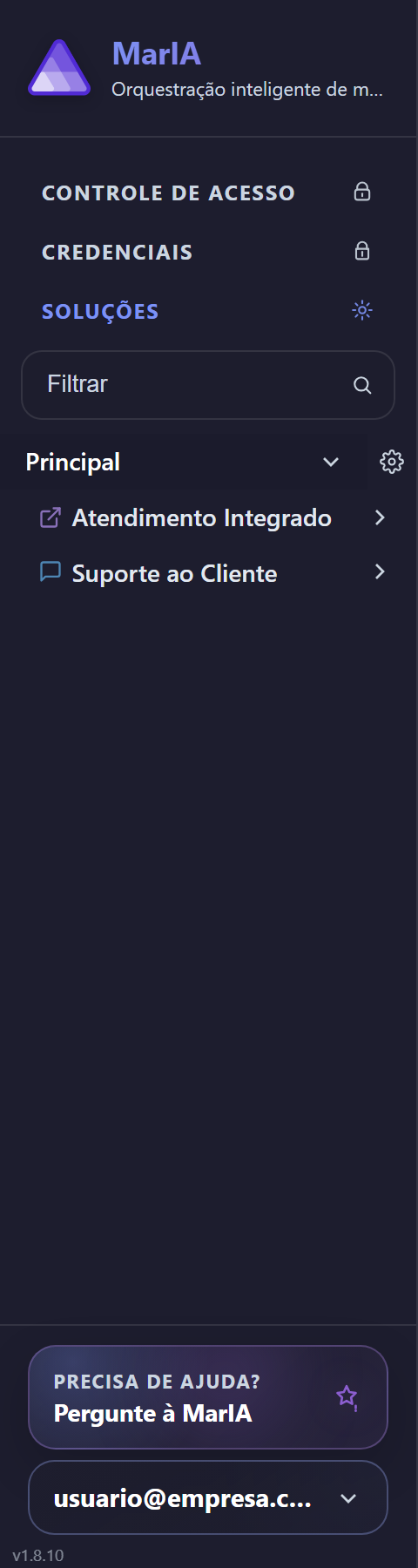
Next to each folder there are shortcuts for + New Solution and for the folder settings.
The Manage menu
Section titled “The Manage menu”Every row in the list has a Manage action that opens the solution’s screens:
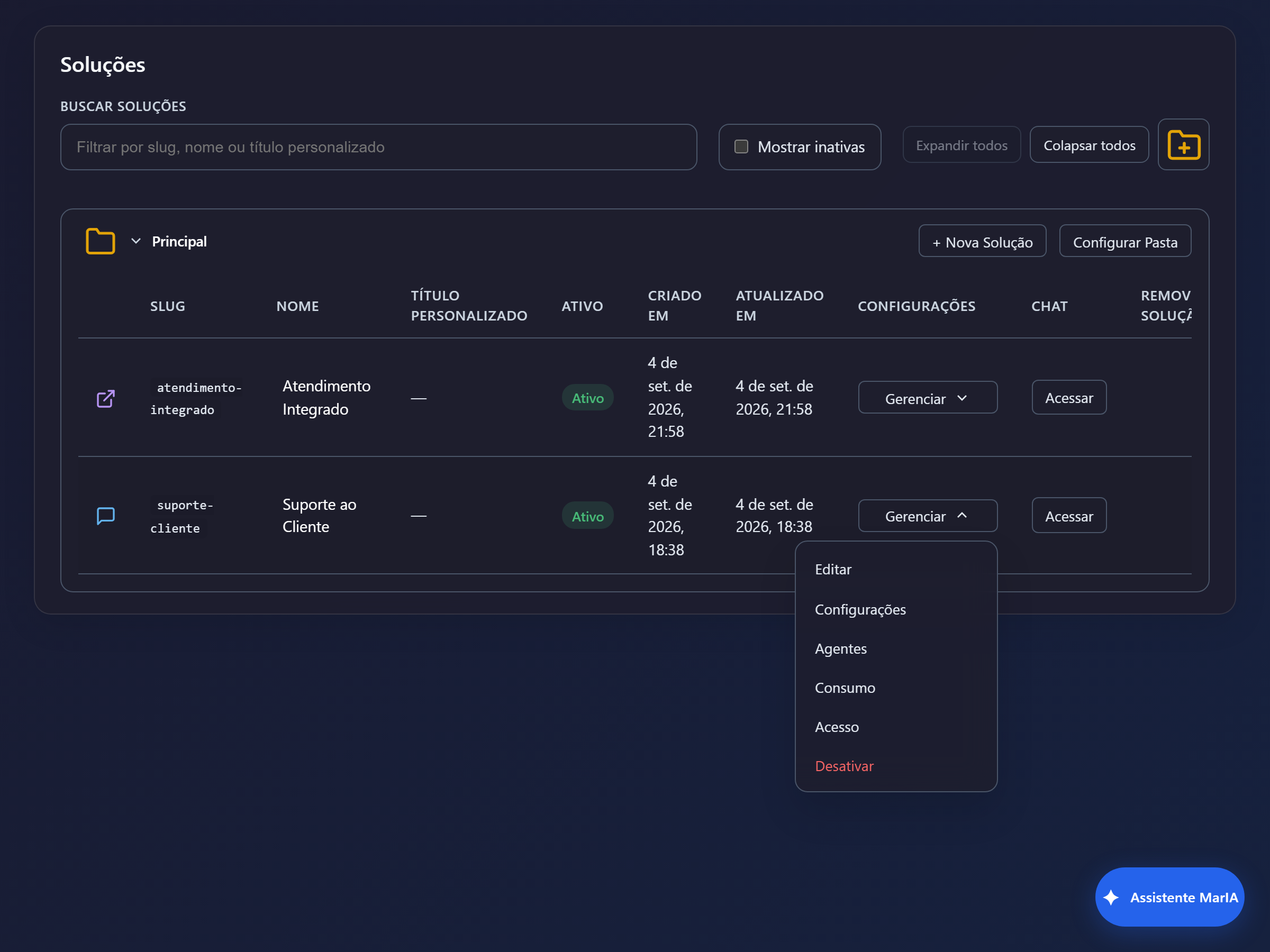
| Item | What it is for |
|---|---|
| Edit | The solution’s name, title, folders and operation mode |
| Settings | Branding, file types, audio, API keys and orchestration |
| Agents | The solution’s assistants — see Creating and configuring agents |
| Consumption | How much the solution consumed, with filters and detail |
| Access | Who can open the solution, and in which access mode |
| Deactivate | Takes the solution offline without deleting its history |
On Integration solutions the menu also offers Integration, with the webhook and API key setup.
In the Chat column, the Open button opens the solution’s chat. On Integration solutions the item becomes Chat (Integration) and shows, read-only, the conversations created by the connected system.