
Solution access
Manage → Access shows the effective exposure of the solution: who reaches it, through which roles, and how strict each functional area is.
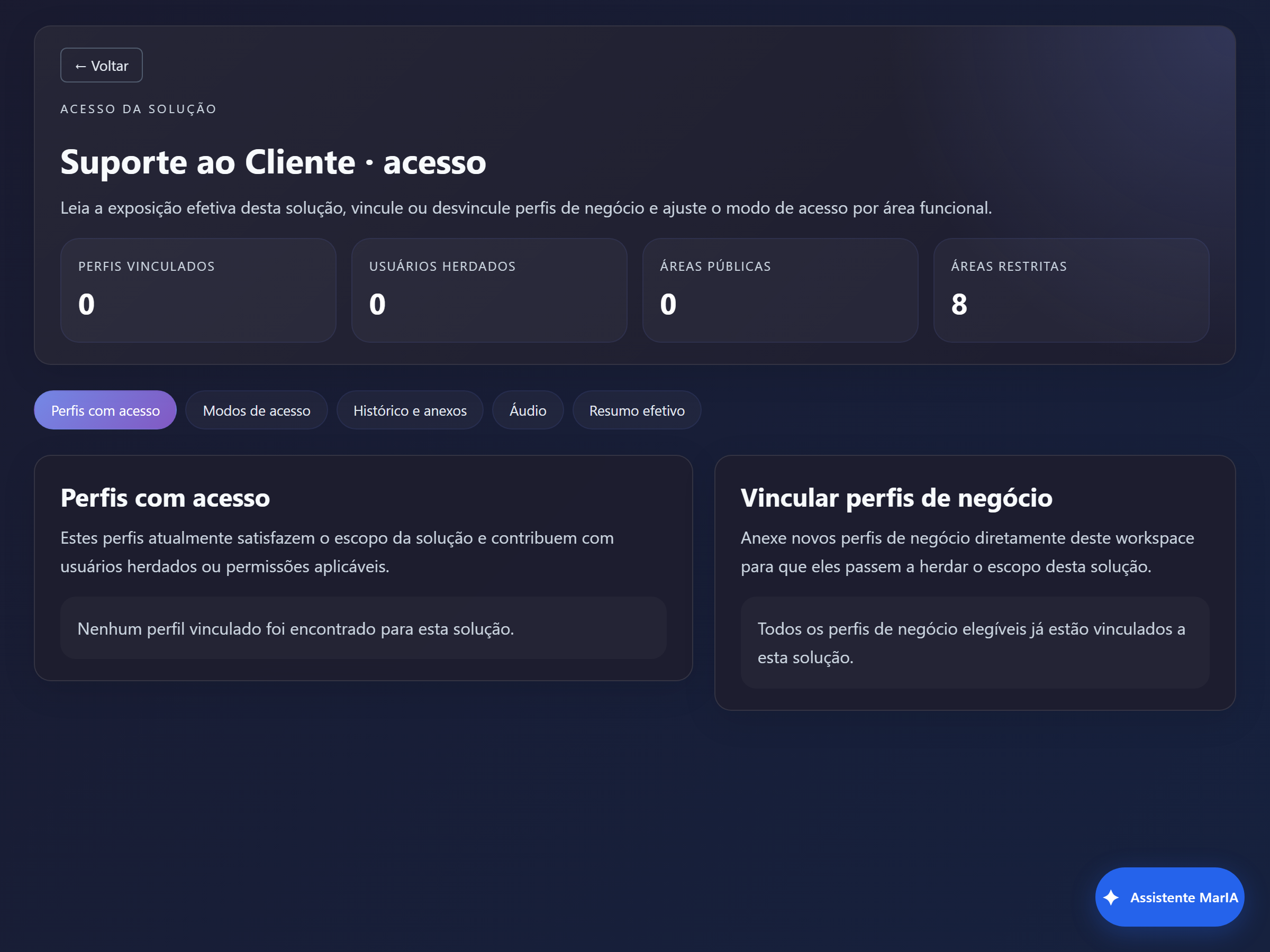
The four indicators
Section titled “The four indicators”Four numbers at the top summarise the situation:
| Indicator | What it means |
|---|---|
| Linked roles | Business roles attached directly to this solution |
| Inherited users | People who reach the solution because of those roles |
| Public areas | Functional areas open without authentication |
| Restricted areas | Areas that require a role with permission |
A brand-new solution starts with every area restricted and no linked role — meaning only global roles that already carry solution-scoped permissions can reach it.
The tabs
Section titled “The tabs”| Tab | What it is for |
|---|---|
| Roles with access | Lists the roles that currently satisfy the solution scope and lets you link new business roles |
| Access modes | Sets how strict the main areas are: chat, execution and consumption |
| History and attachments | Handles conversation history, attachment downloads and title editing separately |
| Audio | Lets transcription and speech follow their own, stricter rule |
| Effective summary | Shows the end result: area by area and role by role |
Effective summary
Section titled “Effective summary”This is the tab that answers “so who can do what?”.
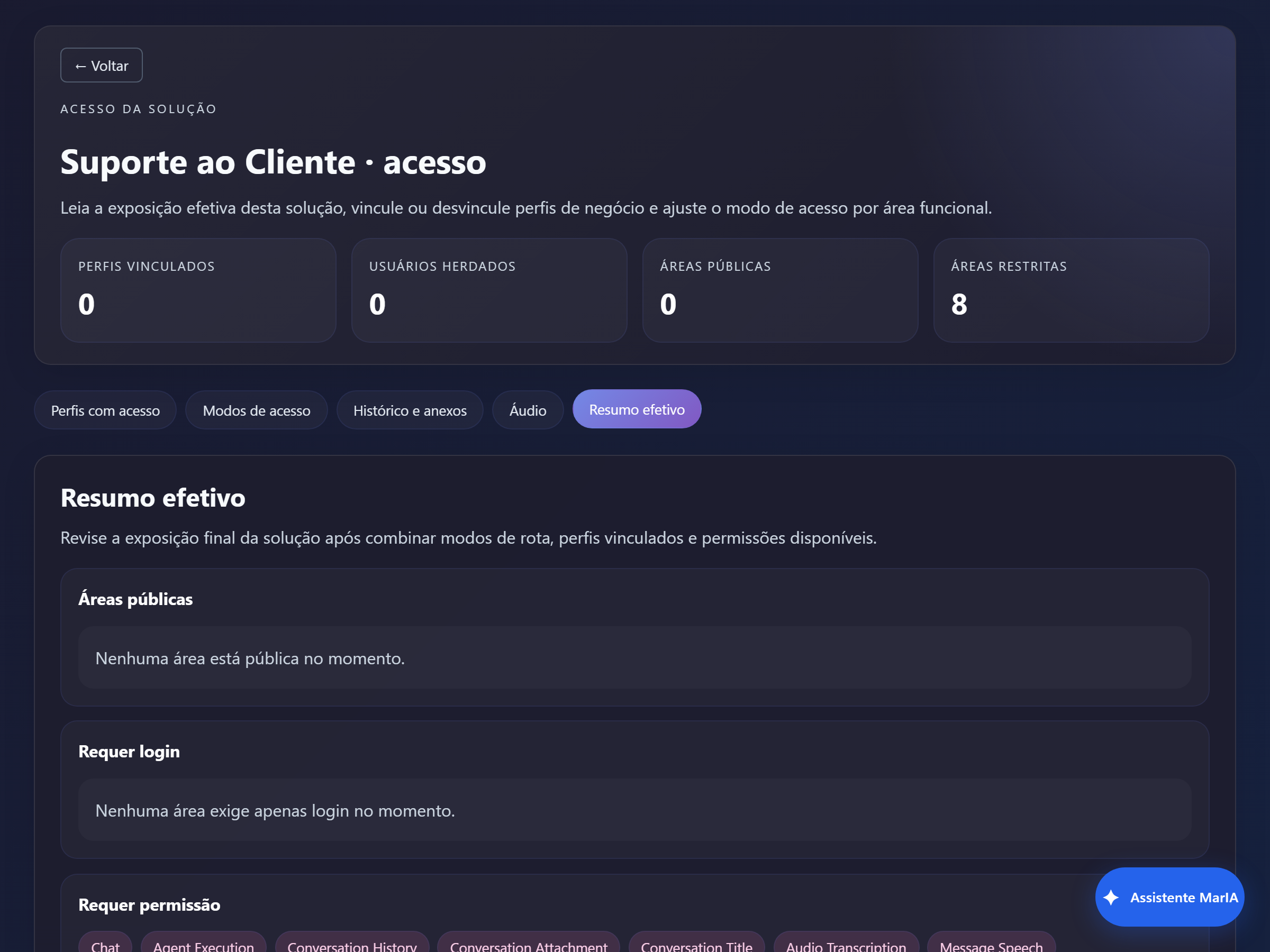
It lists the functional areas — Execution, Conversation History, Conversation Attachment, Conversation Title, Audio Transcription, Message Speech and Consumption Dashboard — and, below, every role that reaches the solution, with how many users it brings and how many permissions it grants.
Linking a role
Section titled “Linking a role”In the Roles with access tab, the Link business roles section attaches an existing role to this solution, so its users inherit the solution’s scope.
The roles themselves are created and edited in Access Control → Access Roles — see Access Control.