
Credentials
Credentials hold the secrets MarIA uses to talk to other systems — API keys, tokens, connection details. You register them once, in one place, and reuse them across tools and MCP servers.
Click Credentials in the sidebar.
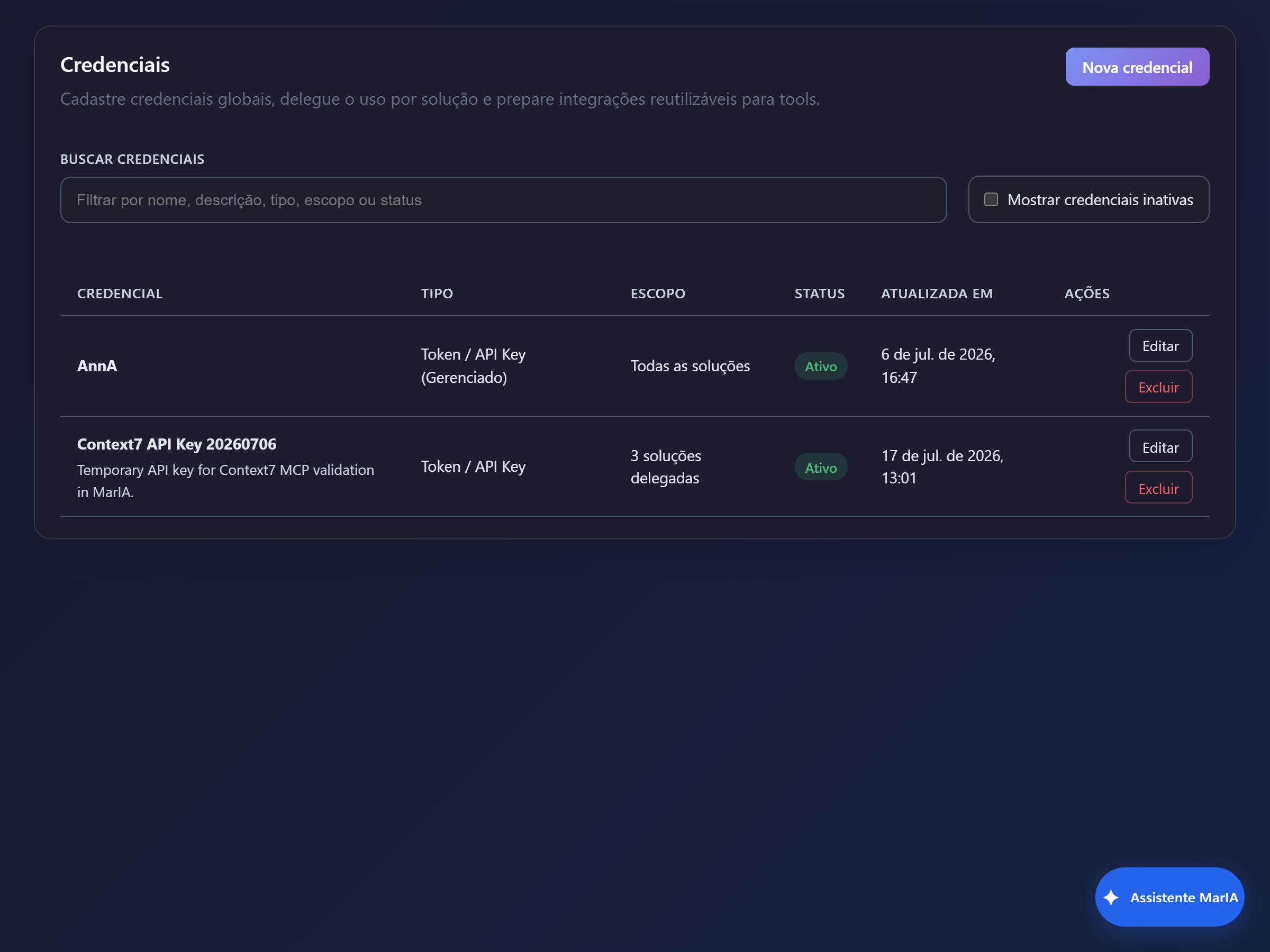
The table shows Credential, Type, Scope, Status and Updated at. The Search credentials field and the Show inactive credentials option help once the list grows.
Creating one
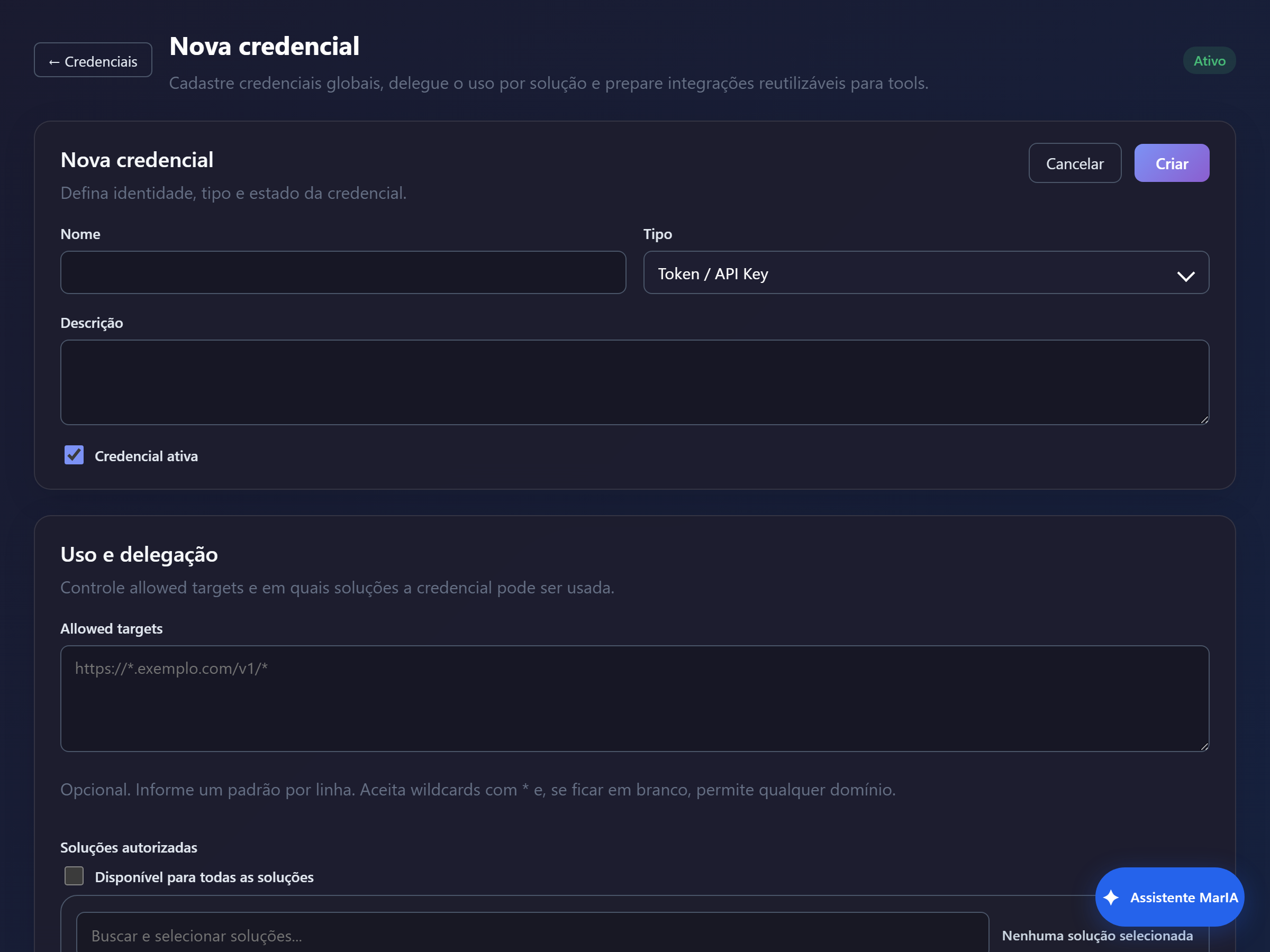
Section titled “Creating one”Click New credential. The form has three blocks.
Identity
Section titled “Identity”Name, Type, Description and Credential active. Give names that say which system the credential belongs to — you will pick it by that name when configuring a tool.
Usage and delegation
Section titled “Usage and delegation”| Field | What it does |
|---|---|
| Allowed targets | One pattern per line, with * as wildcard. Blank allows any domain |
| Authorised solutions | Available to all solutions, or a specific selection |
It is worth filling in both. Allowed targets stops the credential from being used against an unexpected address, and Authorised solutions limits who can use it — only authorised solutions will see the credential when configuring a tool.
Authentication and tokens
Section titled “Authentication and tokens”Defines where the secret goes in the request: Send token / API key in Header or
Query string, the Header name and the key value.
The secret does not come back
Section titled “The secret does not come back”Once saved, the secret value is never shown again — the screen only shows that it exists. To change it, enter a new value.
When a call fails with an authorisation error
Section titled “When a call fails with an authorisation error”- Confirm the credential is Active.
- Confirm the tool’s solution is among the Authorised solutions.
- Check that the address being called matches the Allowed targets.
- If the other system rotated the key, update the secret here.