
Account and Gallery
Account
Section titled “Account”Open the menu with your email, at the foot of the sidebar, and choose Account.
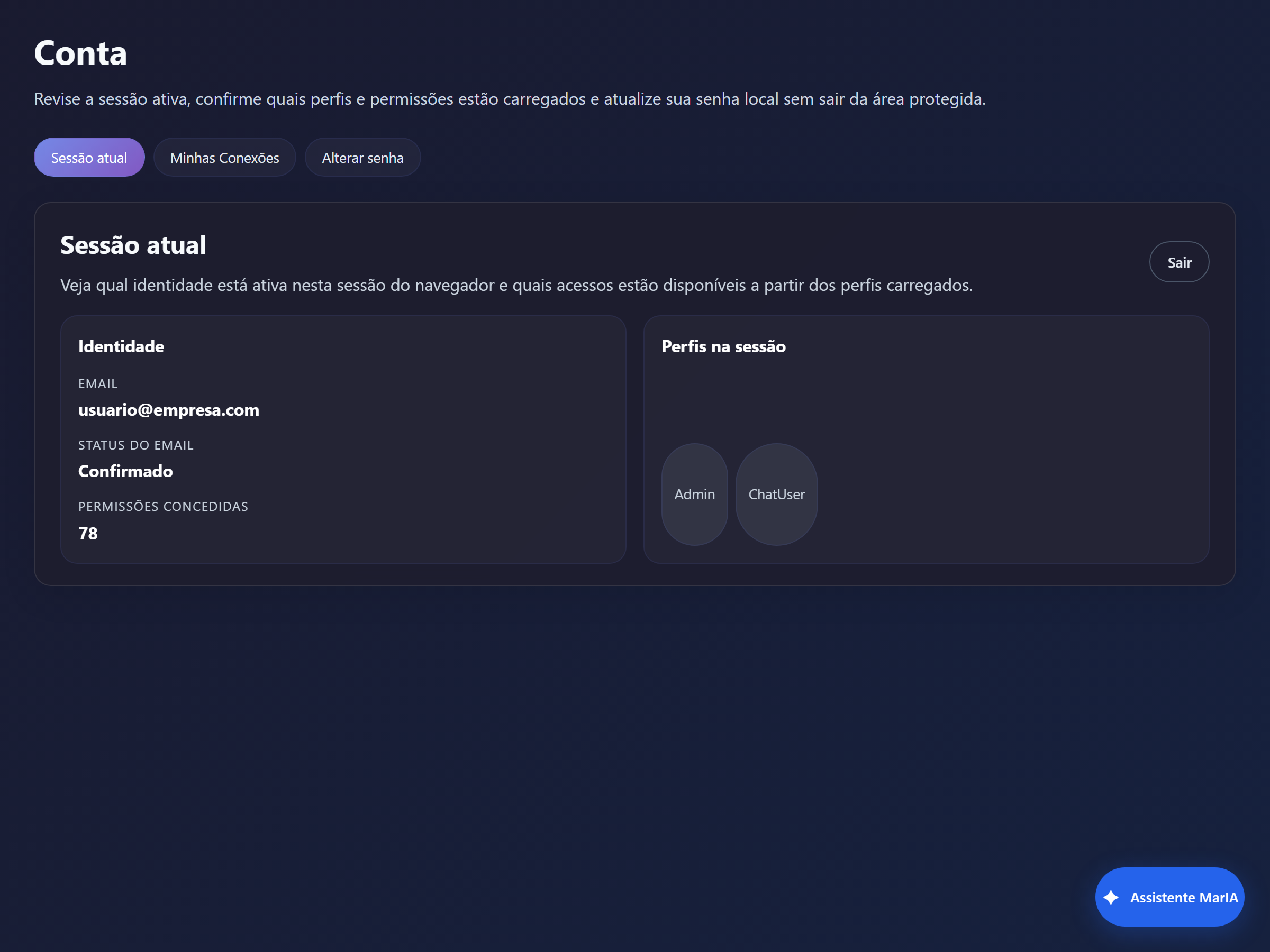
The page has three tabs.
Current session
Section titled “Current session”Shows the identity active in this browser: Email, Email status, how many Granted permissions you have and the Roles in session.
This is worth checking — and quoting — before opening a ticket saying a screen is missing. Most of the time the answer is here: the role loaded does not reach that area. See Solution access.
The Sign out button ends the session.
My Connections
Section titled “My Connections”Lists the connections you authorised individually, when a tool asked for your consent to reach an external system on your behalf.
Change password
Section titled “Change password”Changes your local password without leaving the protected area. The password rules — minimum length, digit, uppercase, symbol — come from the policy set in Access Control → Authentication.
Gallery
Section titled “Gallery”In the same menu, Gallery opens your file space.
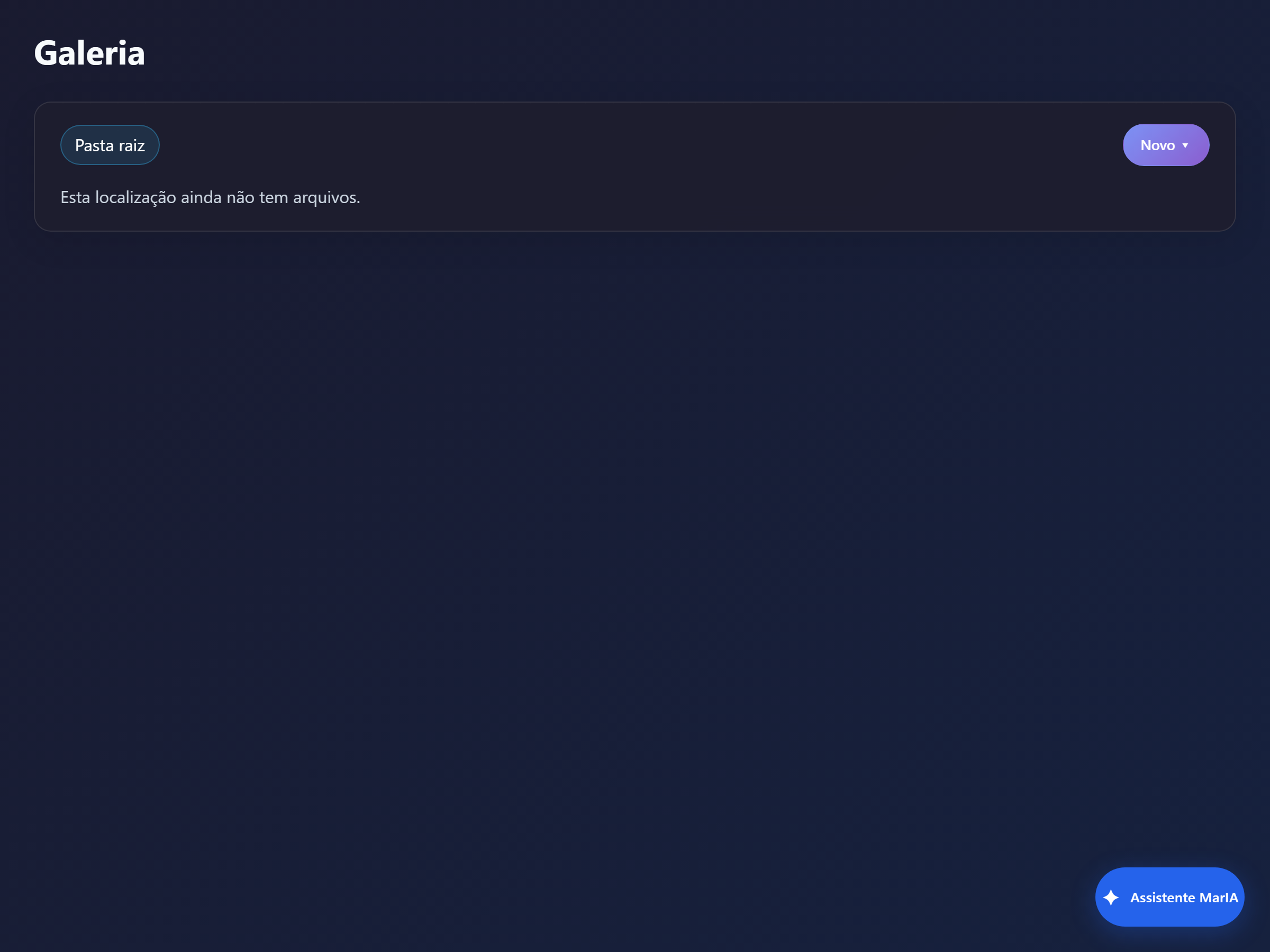
The gallery works like a file explorer: the Root folder breadcrumb shows where you are, and the New button creates folders and uploads files.
The Gallery saves item in the account menu controls what is stored there automatically — images generated during conversations, for example.
Language and theme
Section titled “Language and theme”Still in the account menu, Language switches the interface language and Theme toggles light and dark. Both preferences apply to your user, not to anyone else.