
Using the chat
Opening the chat
Section titled “Opening the chat”There are three ways:
- in the Solutions list, the Open button in the Chat column;
- in the sidebar, the Chat item inside the open solution;
- straight from the address,
https://<host-maria>/<slug>/chat.
Talking
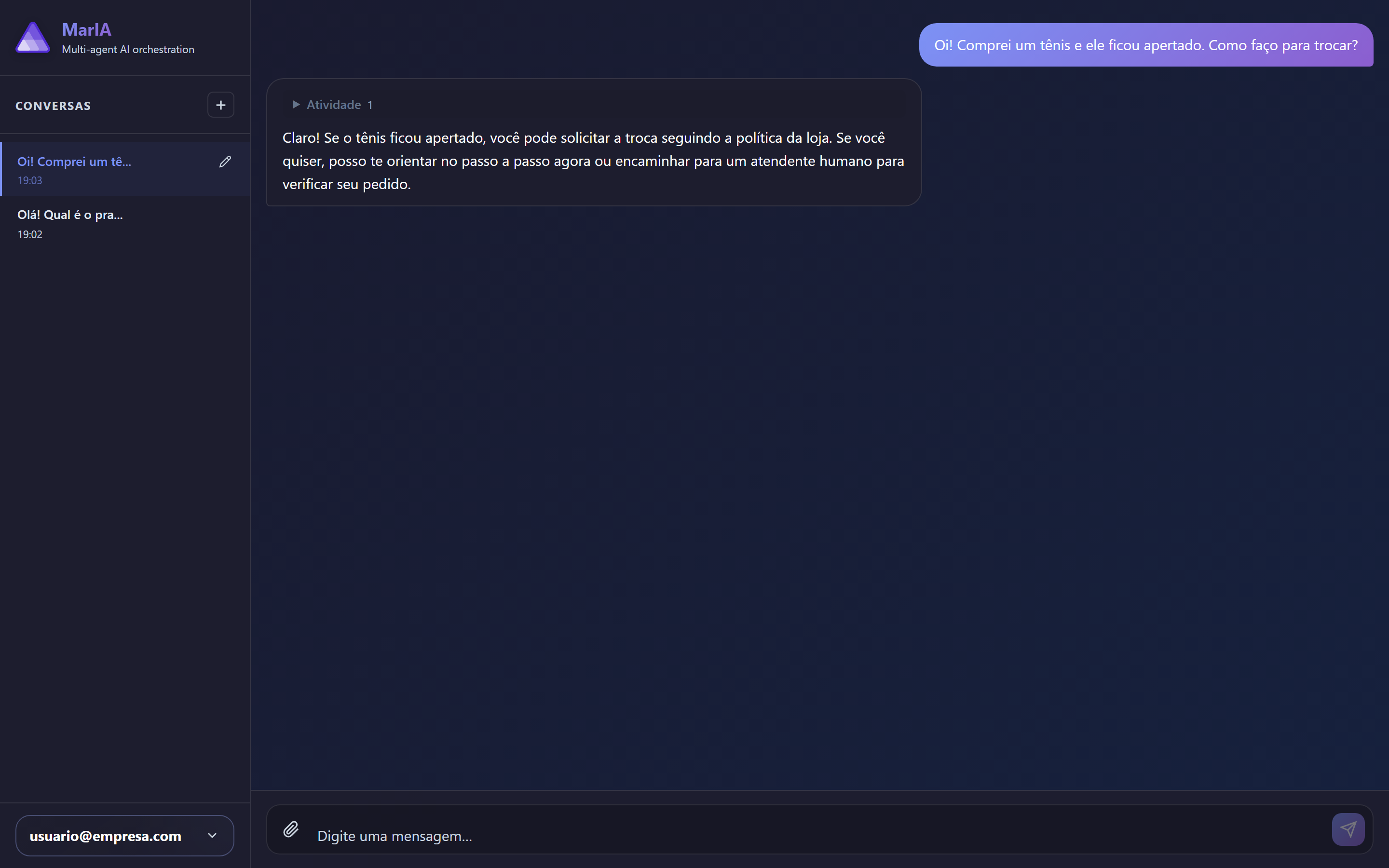
Section titled “Talking”Type your message in the field at the bottom and send it. The answer appears as it is produced, so you start reading before the agent has finished.
Depending on how the agent was configured, the answer may come with:
- cards carrying formatted content;
- forms for you to fill in without leaving the conversation;
- maps with points you can explore;
- source links, when the agent searched the web;
- images generated on the spot.
Sending files and audio
Section titled “Sending files and audio”Use the attachment control to send documents and images the agent should take into account.
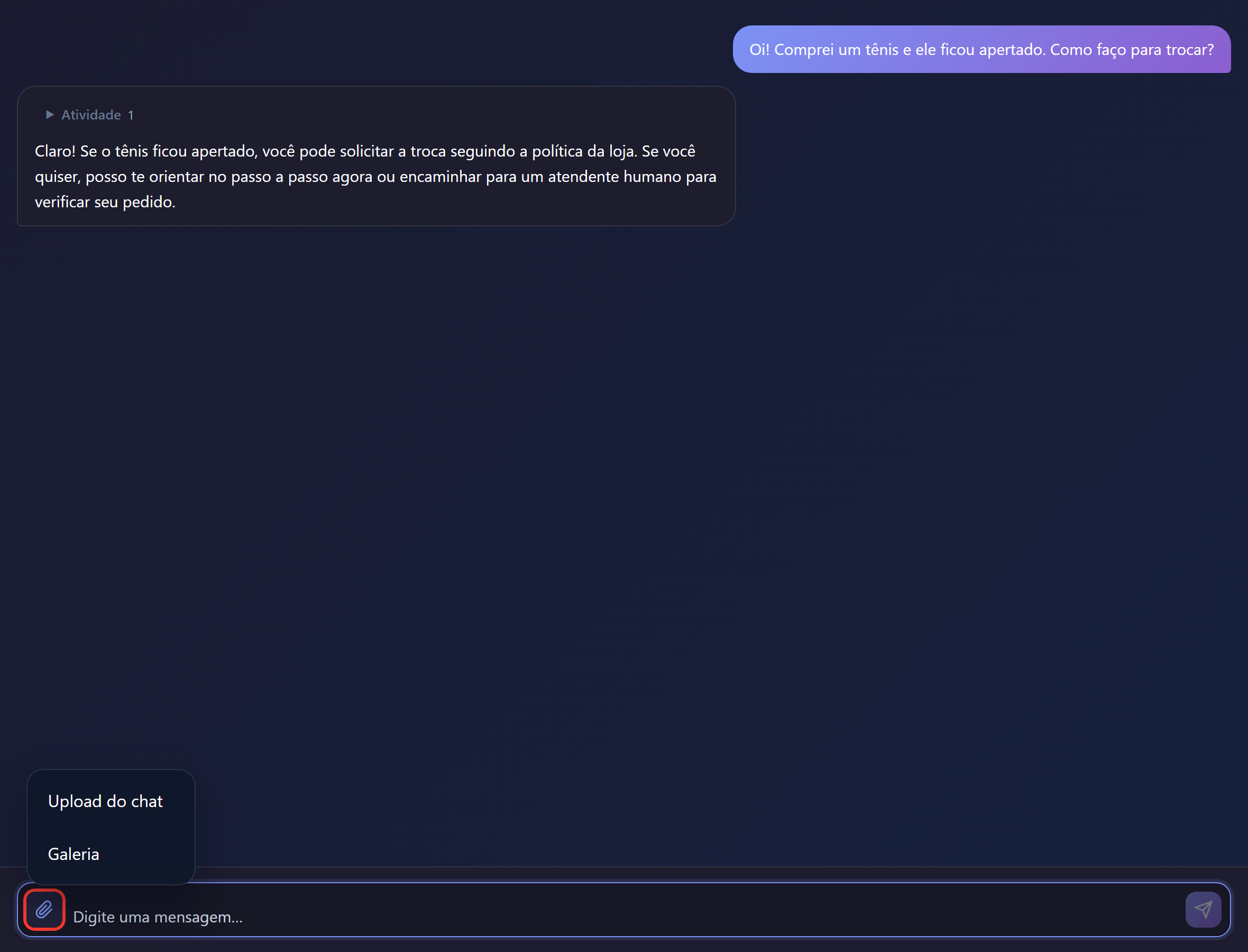
The accepted types and sizes are the ones defined in the solution settings. If an upload is refused, that is the rule at work — talk to whoever administers the solution.
When the solution has audio enabled, you can also speak instead of typing, and listen to the answer.
Resuming conversations
Section titled “Resuming conversations”The conversations panel keeps your history and lets you go back to any earlier conversation or start a new one.
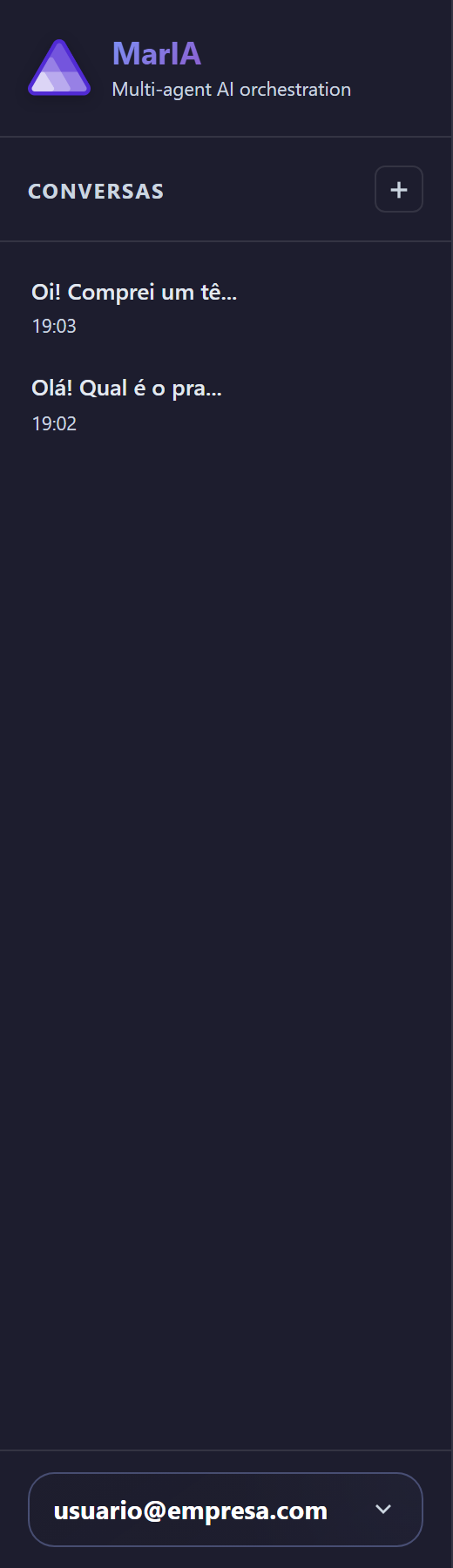
Start a new conversation when you change subject: the agent takes the current conversation into account, so mixing unrelated topics in one thread makes the answers worse.
When something does not go as expected
Section titled “When something does not go as expected”| Situation | What it usually is |
|---|---|
| The chat answers nothing | The solution has no active agent |
| The solution will not open | Solution deactivated, or your user has no access to it |
| There is no chat page at all | The solution is in Integration mode — that is expected |
| The answer ignores a document | The file is not attached to the agent, or is still being processed |
| The attachment is refused | The type or size is not allowed in the solution settings |